Swoop lyrics, undo and redo, and a Visualizer switch
The Melo.Video team
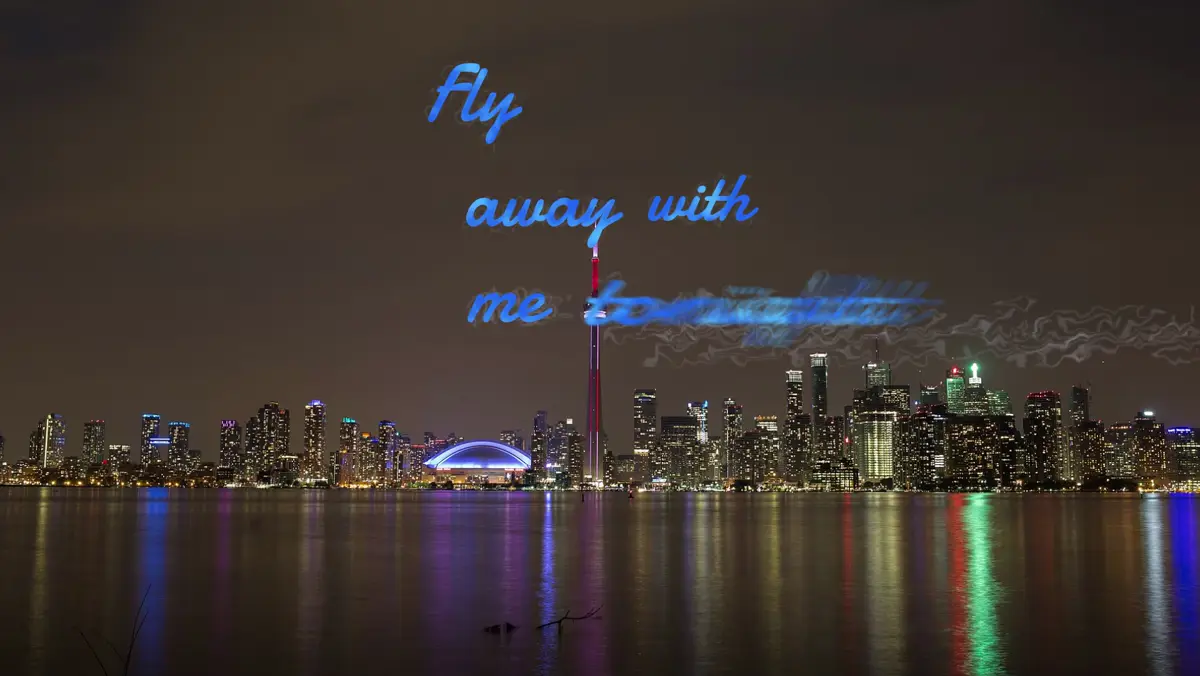
This update brings a new lyric style, the editing basics you'd expect from any video editor, a way to hide the visualizer, and full control over your slideshow's timing.
Swoop: words that fly in on smoke
Swoop sets your lyrics in blue handwritten script, in a few short rows in the middle of the frame. Each word flies in as it is sung: stretched far along its line, it turns or slides into place, with thin pale outlines trailing behind it like smoke. Once a word lands, the smoke calms to a faint wisp, so the words stay crisp.
When a line is done, it leaves in a flare: it pulls apart into wavy, flame-like strands as streaks of light burst out of it.
Every part of Swoop is also a choice of its own, so you can mix it into any style: Swoop under Appear, Flare under Disappear, Smoke trails under Echo, Clouds under Gradient and Airy rows under Layout. It works with any font you pick, in landscape and vertical videos.
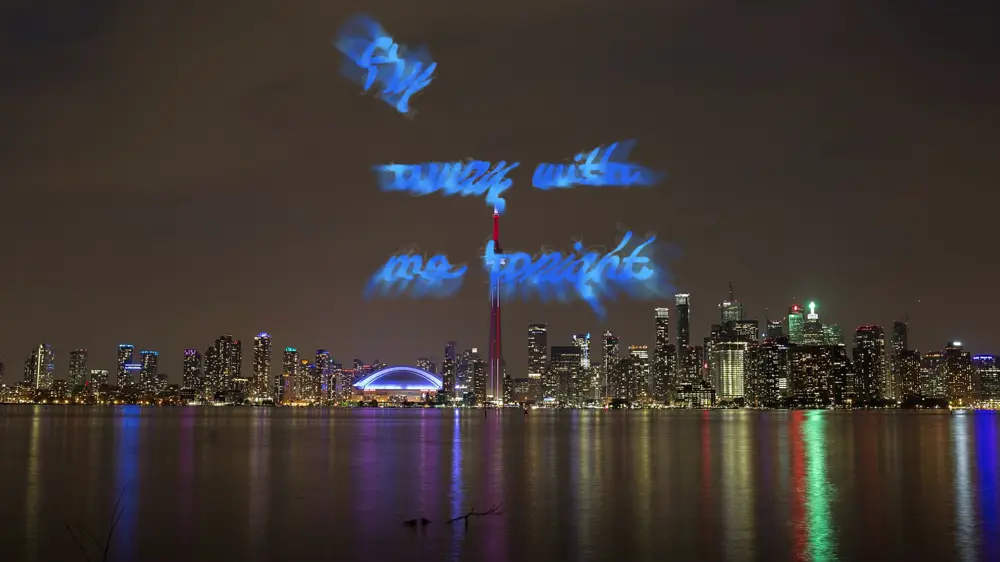
Try Swoop in the lyric video maker
Undo, redo and keyboard shortcuts
The editor now has Undo and Redo buttons under the preview. Press Ctrl+Z (⌘Z on a Mac) to step back, and Ctrl+Shift+Z or Ctrl+Y to step forward again. Undo covers everything you change in the editor: the template, its settings and pictures, the aspect ratio, text, lyric lines and their timing, and the song trim. Dragging a slider or typing a line counts as one step.
Keyboard shortcuts now work all over the editor, not only in fullscreen: Space plays and pauses, the left and right arrows skip five seconds back or forward, and Home jumps to the start.
Each text in the Text tab also has a new Duplicate button. It makes a copy with the same font, colour, size, shadow and timing.
Bring your own timed lyrics
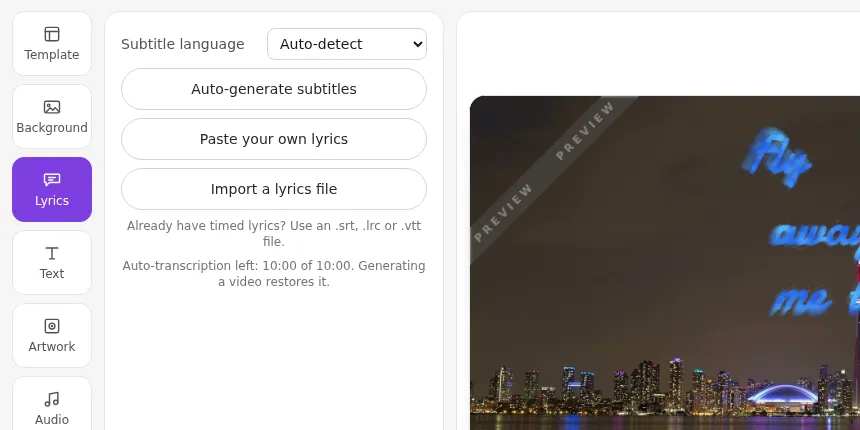
Already have your lyrics timed in an .srt, .lrc or .vtt file? Pick Import a lyrics file in the Lyrics tab, and its lines and timings appear straight away, ready to export. Files with word timings get word-by-word karaoke too. Nothing needs to be transcribed, so it doesn't use any of your free lyrics minutes.
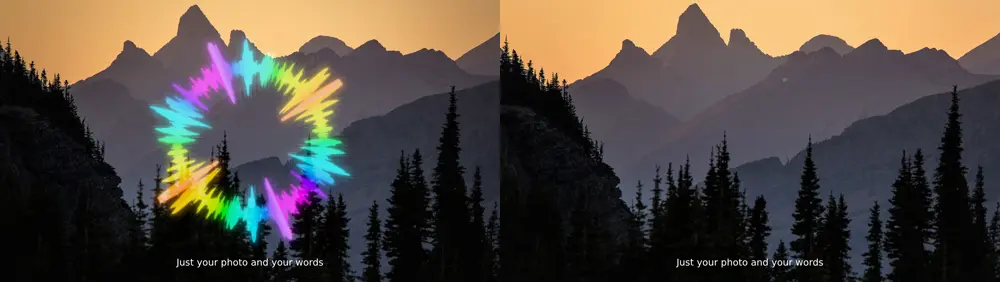
Just your photo and your words
A new Visualizer switch at the top of the Template tab hides the template's spectrum or waveform completely. With it off, your video shows only your background photo or video, your text and your lyrics. The Background tab's effects add the movement, and switching it back on brings the template back exactly as you left it.
Time every slideshow photo yourself
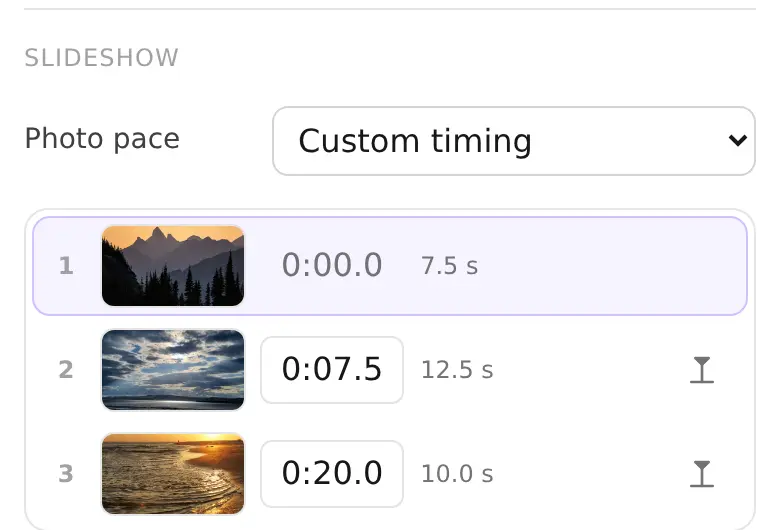
Choose Custom timing under Photo pace, and a list of your photos appears with the moment each one starts. Type a time, or play the song, pause where a line begins and press "Start at playhead". Each photo keeps its moment when you change other photos or trim the song, and the last photo stays on screen until the end instead of starting the slideshow over.
Smaller improvements
- Make a copy of a video from your dashboard. The copy keeps the song, the look, the text and the lyrics, so you can try another template or aspect ratio without touching the original.
- Auto footage puts itself on your video when it's ready, unless you picked another background meanwhile, and one click undoes it. If you've left the editor, we email you. Descriptions can now be up to 500 characters.
- "Reset to template defaults" asks first, and says that your picked photos go back to the defaults too.
- "Add video" in the Advanced video window works again: the video picker opens on top instead of behind it.